- Related Products
- ADAudit Plus
- ADSelfService Plus
- EventLog Analyzer
- Exchange Reporter Plus
- AD360
- Log360

Help Document
Jira integration settings
Jira is a software used for help desk management and issue tracking. Integrating ADManager Plus with Jira will empower technicians to perform critical Identity and access management tasks like creating, deleting, enabling, disabling, managing group memberships of or unlocking a user account, and resetting passwords right from the tickets in the Jira console.
Before you begin
- Download and install ManageEngine ADManager Plus if you haven't deployed ADManager Plus yet.
- If you're an existing user, ensure that you have updated ADManager Plus to its latest version. The integration with Jira is supported from versions 7064 and above.
Steps to integrate ADmanager Plus with Jira:
- Log in to ADmanager Plus, and click the Admin tab.
- Under System Settings, click Integrations.
- Under ITSM/Help Desk Tools, click Jira.
Note: The Enable Integration button is turned on by default. Toggle it off to disable the Jira integration.
Steps to configure the ADManager Plus plug-in in Jira:
- Login to the Jira instance as the admin.
- Download the ADManager Plus application from the Atlassian Marketplace.
Note: A .jar file will be downloaded.
- In the top navigation bar, click the Settings icon, and click Manage apps.
- Click + Upload Apps, choose the .jar file that you just downloaded, and click Upload.
- Once you have uploaded the .jar file, search and select ADManager Plus under User installed apps, and click the Configure button.
- In the page that opens, click the Integrate Now! button
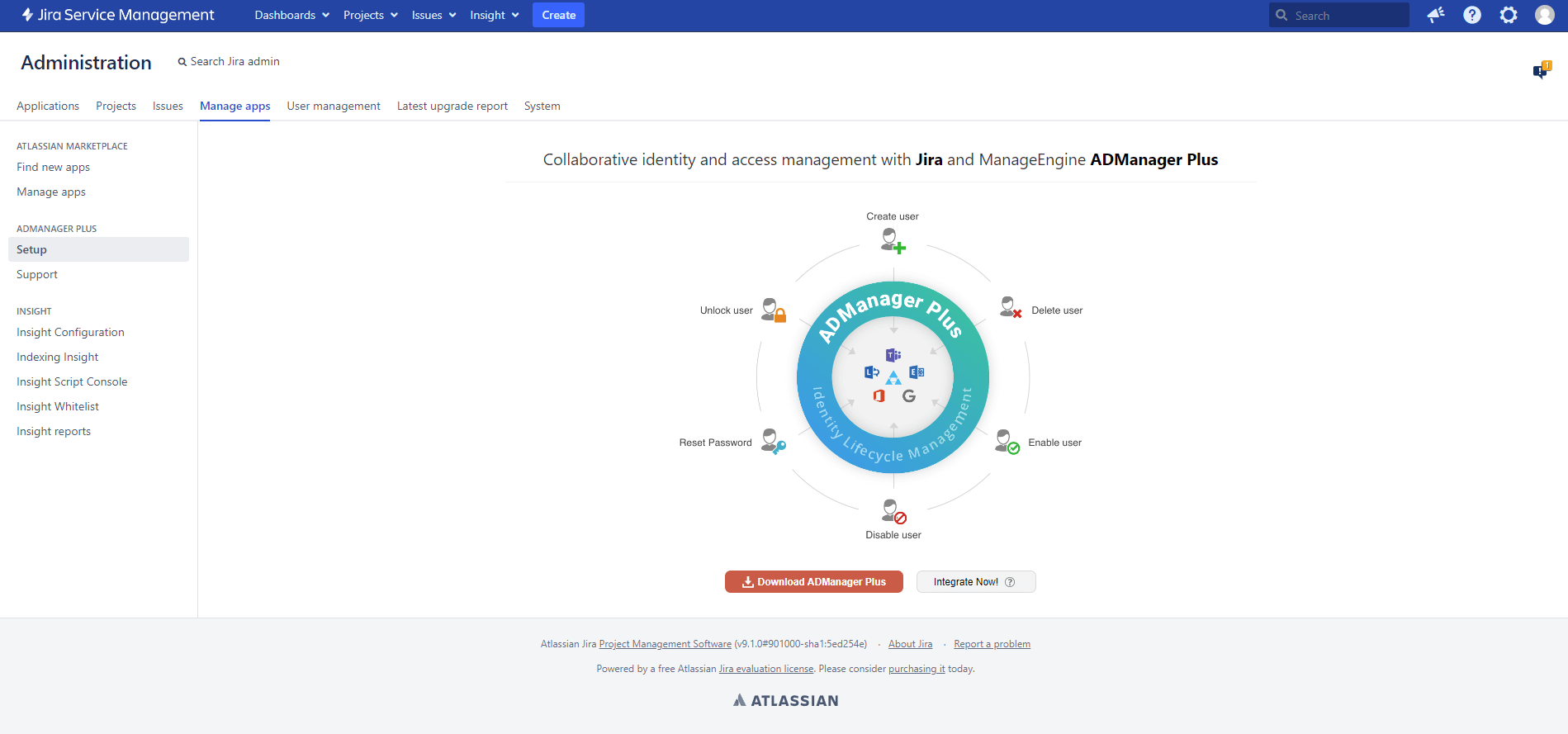
- Copy the Referrer URL displayed on the page, and open ADManager Plus.
- In ADManager Plus, paste the copied Referrer URL in the Referrer URL field.
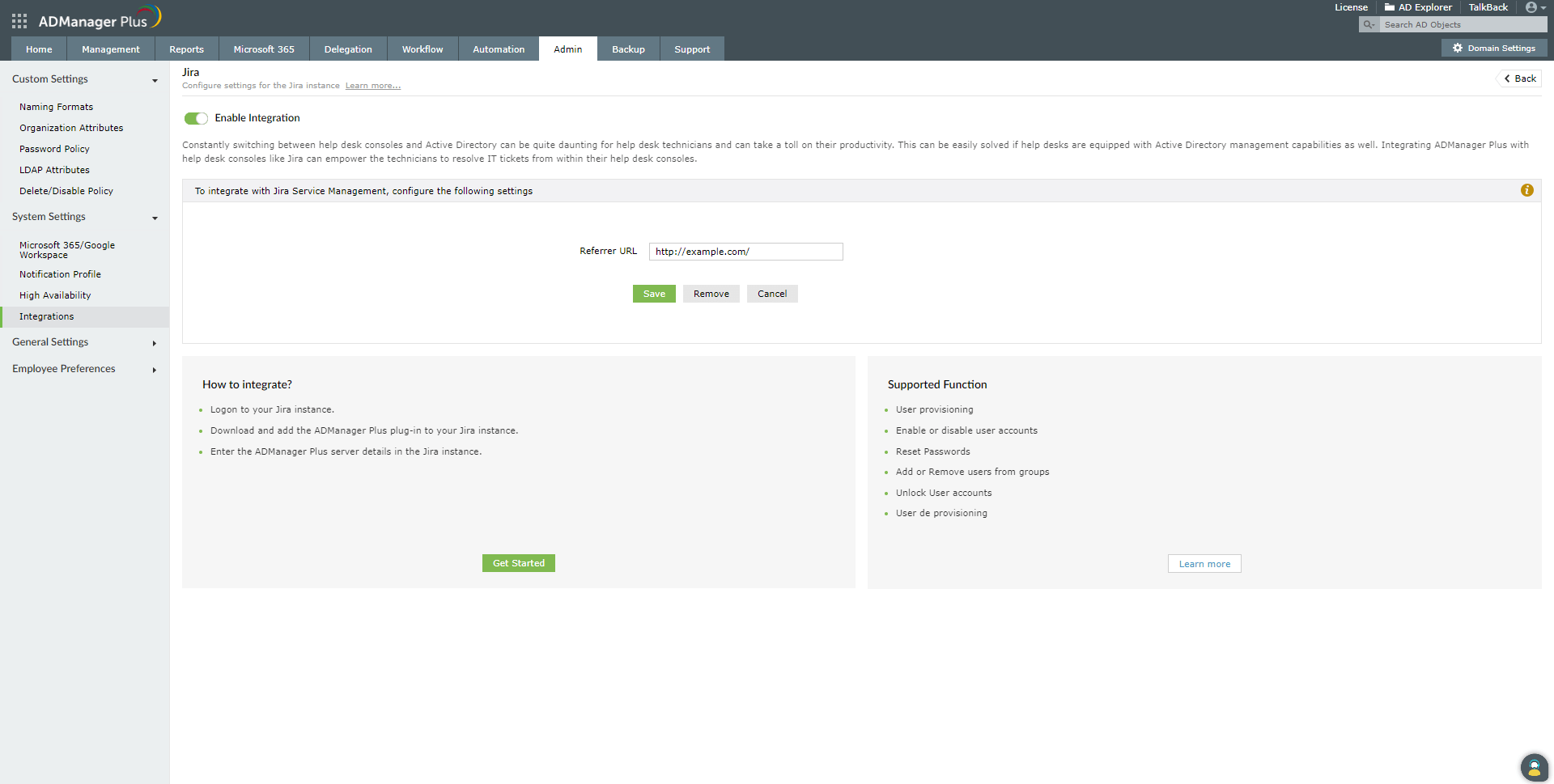
- Navigate back to your Jira instance, and click Next.
- Enter the URL of the server where ADManager Plus is running in the ADManager Plus' Server URL field, and click Next.
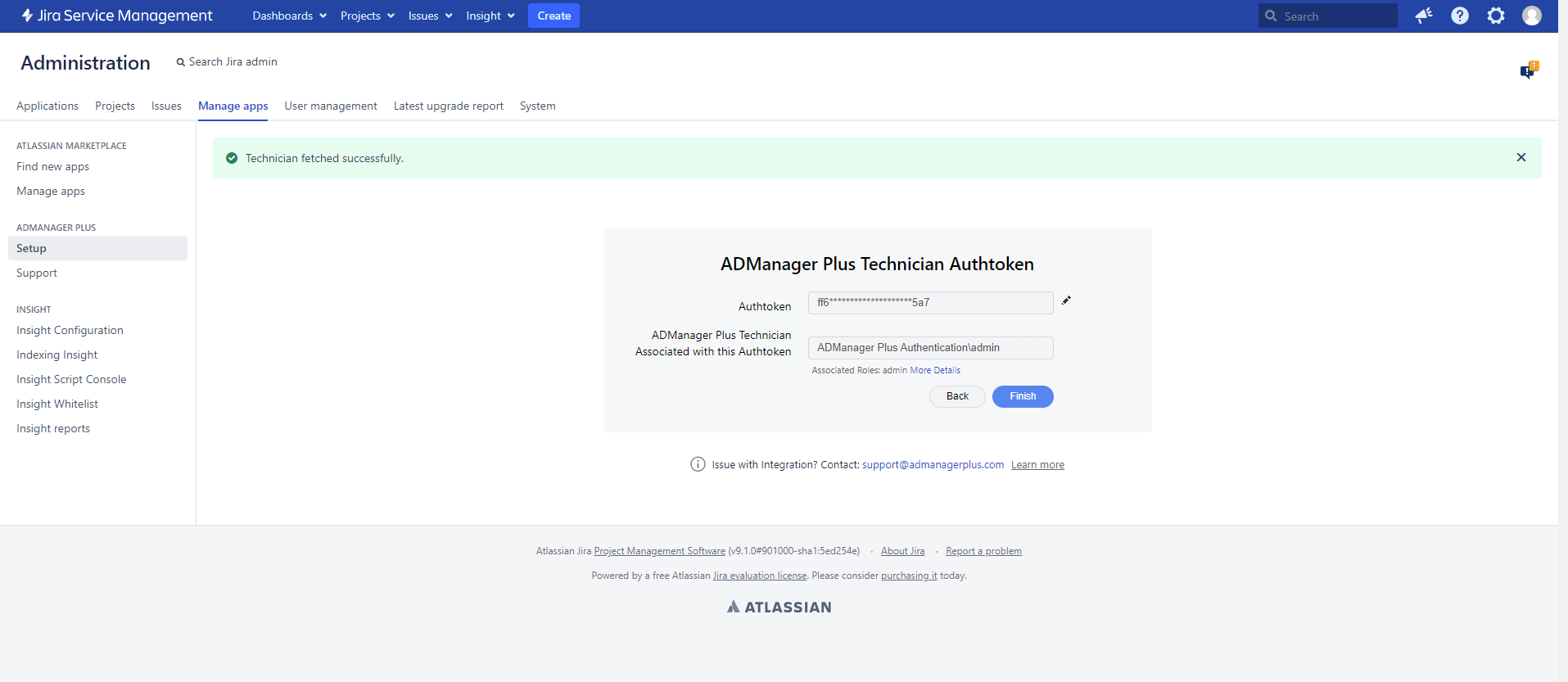
- Enter the ADManager Plus technician's authtoken in the Authtoken field, and click Validate to fetch the associated technician from ADManager Plus.
Note: The technician's authtoken can be obtained by navigating to Delegation → Configuration → Technician Authtokens in ADManager Plus.
- Once the technician's details are auto-populated in the ADManager Plus Technician Associated with this Authtoken field, click Finish.
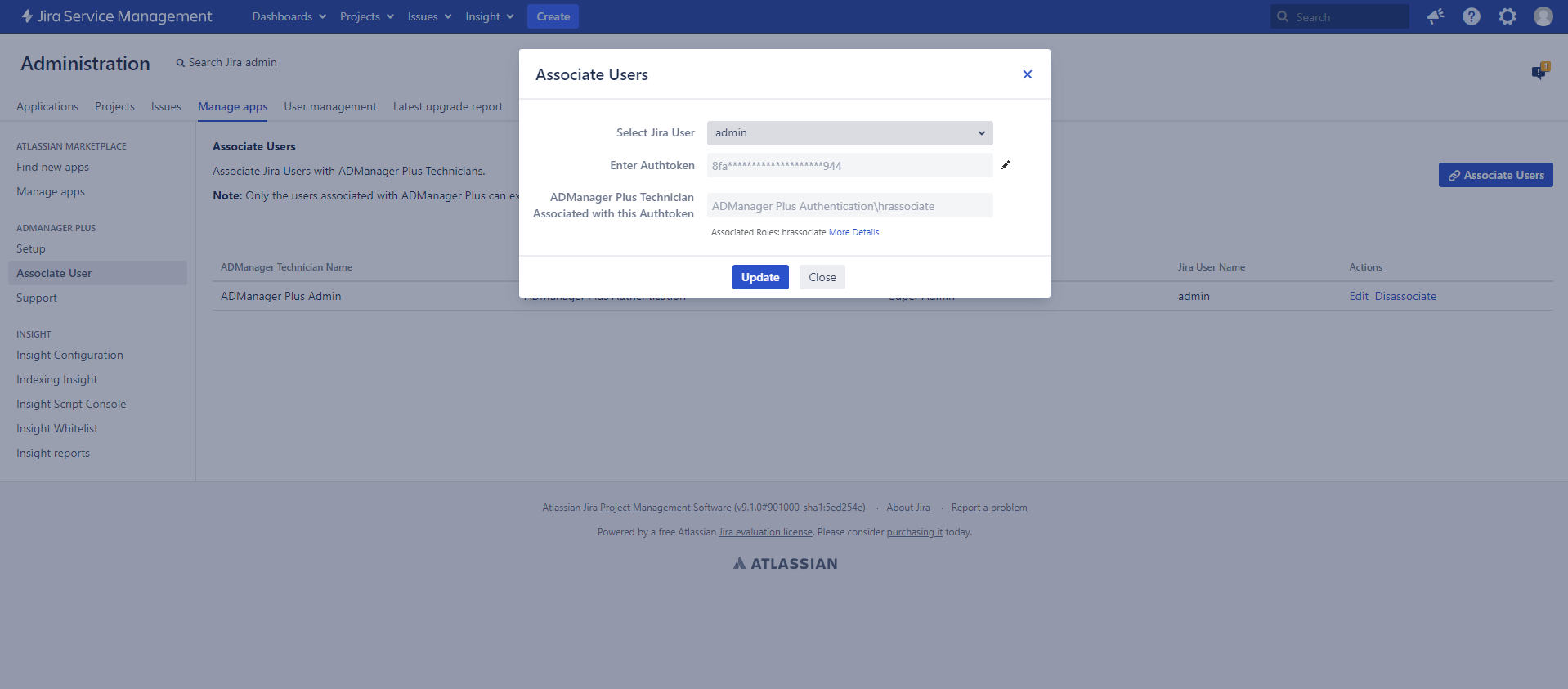
- You can add more technicians in Jira by navigating to the Associate Users tab under ADManager Plus. Click Associate Users, specify the technician's authtoken in the Enter Authtoken field, and click Update.
Note: Authtokens can be easily edited in the future by clicking the Edit icon next to the Enter Authtoken field.
Actions supported:
- User provisioning
- Enable or disable user accounts
- Reset passwords
- Add or remove users from groups
- Unlock user accounts
- User de provisioning